
Introduction
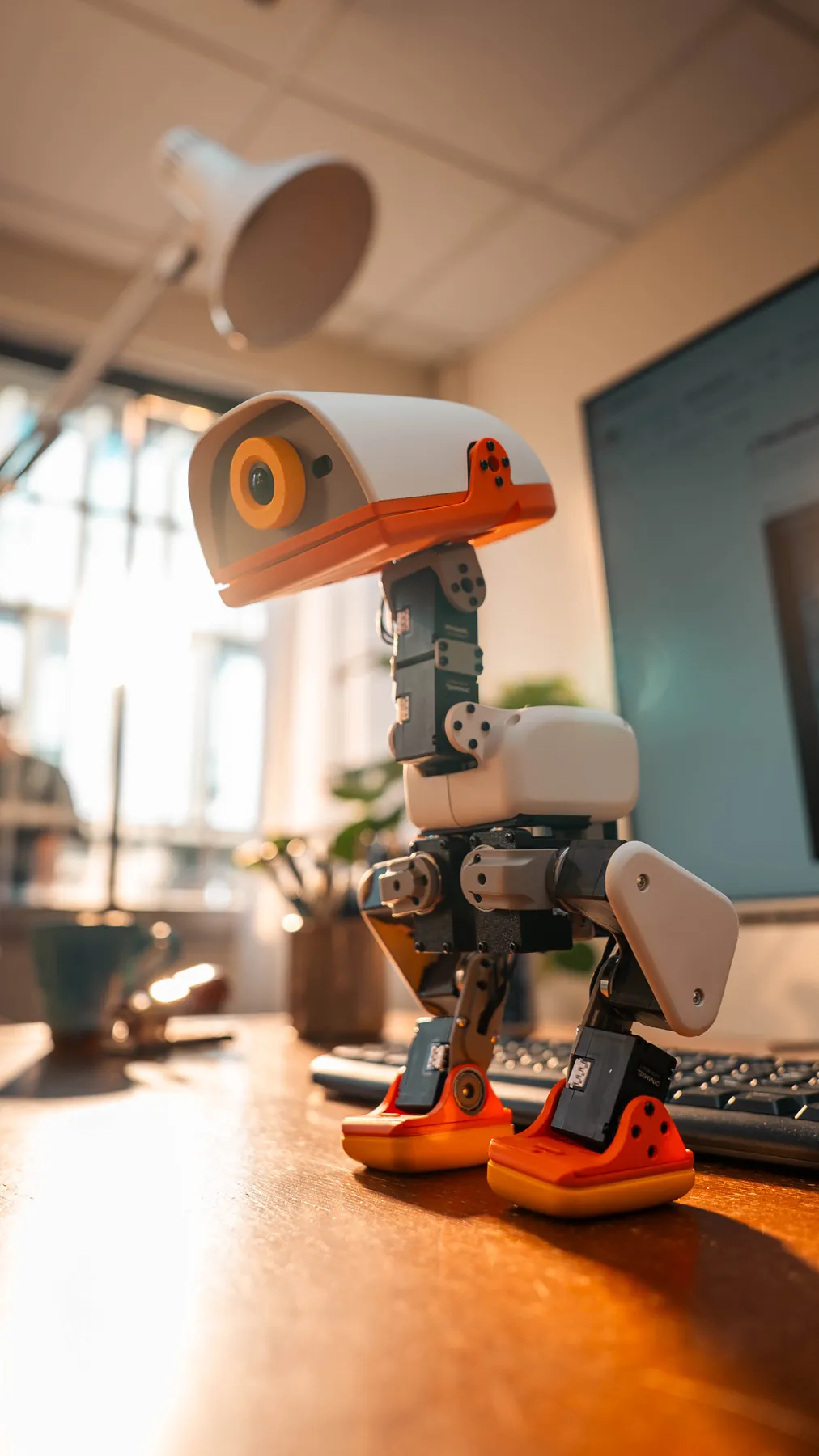
Microduck is a 25 cm biped robot sold by Pollen Robotics, a Hugging Face company. Its published US preorder price is $399 before taxes and shipping. It has 15 motors, an onboard processor, camera, depth sensing, two IMUs and audio hardware.
This guide explains what to buy, how to start with the simulator, how to train new movements and what it takes to experiment with NVIDIA Isaac Sim or an AI voice assistant. We separate documented capabilities from proposed integrations and unresolved community questions. The manufacturer has not yet completed its official first-start manual.
Direct answer
Microduck is a 25 cm programmable biped with 15 motors, priced at $399 before tax and shipping. Its official software uses MuJoCo and reinforcement learning. Isaac Sim import and arbitrary AI speech require additional integration and validation.
Key facts
- $399 US preorder price; €340 displayed in Europe.
- 25 cm tall, 780 g according to the official store.
- 15 motors, 2 IMUs, 8 × 8 ToF sensor and approximately one hour of battery life.
- Official MuJoCo/PPO pipeline and 50 Hz onboard policy loop.
- No verified native arbitrary-speech or official Isaac Lab workflow as of November 27, 2026.
What is Microduck?
Microduck (also searched as MicroDuck or Micro Duck robot) is a small programmable biped from Pollen Robotics, a Hugging Face company. It is designed for learning locomotion and developing physical AI behaviors. Its beak can grasp small objects, and pretrained movements include walking, crouching, ground pickup, kicking, rolling and getting up after a fall. The exact set depends on the installed policy version and accessories.
The commercial robot ships assembled. Its software, simulator and training stack are Apache-2.0 projects; the manufacturer does not grant an open-source license to all mechanical and electronic designs. Do not confuse it with XGO-Duck or Open Duck Mini, which have their own hardware and instructions.
Microduck price, preorder, shipping and where to buy
Buy directly from Pollen Robotics through the official store listed in the sources. The advertised preorder price is US$399 before taxes and shipping; the EU storefront displayed €340 when checked. The shipping policy dated October 29 targets first deliveries before Christmas 2026, an estimate rather than a guaranteed individual delivery date.
The advertised launch markets are the US, Canada, EU, UK, Norway, Switzerland, Japan and South Korea. Morocco and India are not on that initial list; confirm your destination at checkout. Third-party websites with similar names are not evidence of official authorization.
The box contains an assembled robot, battery, USB-C cable and gamepad. The developer and accessory packs are optional. Check the actual checkout total and cancellation terms before paying.
Published US prices
| Item | Price before tax and shipping | Contents |
|---|---|---|
| Robot | $399 | Robot, battery, cable, gamepad |
| Charger pack | $39 | Dual charger, two batteries |
| Dev pack | $119 | Three spare motors, cables, batteries, charger, NFC tags and tools |
| Accessory pack | $39 | Rollers, ball, laser pointer and NFC items |
Manufacturer product page, checked November 27, 2026. Prices and availability can change.
Microduck specifications, sensors, motors and battery life
The store specifies a 780 g robot while the launch page rounds its weight to 800 g. It has a 25 cm body, 15 motors and a removable NP-F550 battery. The reported runtime is about one hour, without a published standardized duty cycle.
The 14 locomotion-related servo joints used in the RL model are not the same as the total motor count; the beak is controlled separately. Two IMUs provide inertial sensing, while the 8 by 8 time-of-flight array supplies coarse depth. The camera supports visual experiments but is not evidence of general object recognition out of the box.
Official hardware specifications
| Component | Specification | Role |
|---|---|---|
| Processor | Rockchip RK3566 + AI accelerator | Onboard control and perception |
| Memory | 1 GB RAM, 32 GB storage | Runtime and models |
| Actuators | 15 motors | Body and beak |
| Vision | Wide-angle front camera | Image input |
| Depth | 8 × 8 ToF LiDAR | 64 depth cells |
| Inertial | 2 IMUs | Motion and orientation |
| Audio | Microphones and speaker | Sound input and output hardware |
| Radio | Wi-Fi, Bluetooth | Network and controller |
| NFC | 2 antennas, head and beak | Tagged-object interaction |
| Battery | Removable NP-F550; ~1 hour | Portable power |
| Control loop | 50 Hz | 20 ms per control tick |
Source: official product and runtime repositories; no independent endurance measurements.
How to turn on and control Microduck for the first time
As of November 27 the official getting-started page is still under construction. The following is a conservative commissioning checklist, not an independently tested unboxing procedure. Follow the shipping manual for the battery latch, power switch and controller button mapping once available.
Use the included gamepad and the factory policy set before connecting developer tools. Choose a level floor with enough clearance for a fall, stay away from edges and keep fingers clear of the joints and beak. Avoid using a rolling attachment on an elevated surface.
- Charge the supplied battery according to the manufacturer instructions and inspect the joints and connectors.
- Place the robot on a clear level floor and power it on following the supplied manual.
- Connect the gamepad using the supplied instructions. Begin with standing and a short slow walk.
- Check that the robot stops when the command is released. Test head and beak commands only with light objects and adequate clearance.
- For developer work, identify the installed firmware and use the documented network setup and update mechanism. Keep a record of the working version.
The full official unboxing and first-start guide was not yet published when checked. Do not invent a button sequence or use firmware instructions from a different duck robot.
Microduck software, SDK, firmware and GitHub
There are two primary repositories. The runtime is written mainly in Rust, with an IPC interface and tools for developers. The RL repository contains the MuJoCo models, actuator simulation, task configurations and training scripts. The SDK and remote-control examples evolve independently of individual policy checkpoints.
robotd executes the motor control loop; autod manages supported autonomous behaviors; mediad provides camera streaming; tofd supplies depth; configd manages connectivity and identity; btd and padd handle Bluetooth and gamepad input. updaterd handles signed updates and rollback. Clients communicate via a JSON-RPC interface. Use the installed version's API definitions rather than assuming that every method on main has shipped.
Sensors
IMUs, joint feedback, camera, ToF
Local runtime
robotd, tofd and mediad
Policy and safety
ONNX inference, fall handling and commands
Actuators
Servo bus, body joints and beak
Feedback loop
Measured joint states return to the next control tick. The camera can also feed a separate application.
Safety supervision
Keep safety and balancing local. A remote language model should request allowed skills, never send unrestricted motor targets.
robotctl monitor
robotctl configure
robotctl update
Developer workstation setup: Git, Python, CUDA, uv, Rust and W&B
Use Ubuntu 24.04 as a suggested development workstation, not a manufacturer-mandated OS. A CUDA-capable NVIDIA GPU is needed for local PPO training; CPU MuJoCo playback is a different workload. WSL2 is an alternative to investigate on Windows; Linux Bluetooth and systemd-dependent runtime simulation need additional configuration. Install the NVIDIA driver separately using NVIDIA's current compatibility instructions. Do not install a random CUDA toolkit version: the repository lockfile determines Python dependencies.
Use Git to pin both repositories to a known commit. uv resolves the Python environment, Cargo builds the Rust controller, and Weights & Biases records runs. The Hugging Face Hub hosts published policies. Start with a small environment count to verify memory and GPU allocation before scaling.
Software stack and execution location
| Software | Where it runs | Purpose |
|---|---|---|
| uv / Python | Development PC | Python dependencies and scripts |
| MuJoCo | CPU or development PC | Physics and policy playback |
| MuJoCo Warp / mjlab | NVIDIA GPU | Parallel training simulation |
| PyTorch / rsl_rl | GPU PC or cloud | PPO optimization |
| Weights & Biases | PC and web service | Checkpoint references and metrics |
| ONNX Runtime | Robot or CPU simulator | Inference |
| Rust / Cargo | Development PC | Runtime and command-line tools |
| Hugging Face Hub / Jobs | Cloud | Policy distribution and remote training |
| Isaac Sim / Isaac Lab | Supported NVIDIA workstation | Separate experimental port |
sudo apt update
sudo apt install git curl build-essential pkg-config python3
curl -LsSf https://astral.sh/uv/install.sh | sh
# Open a new terminal after installation.
uv --version
git --version
nvidia-smimkdir -p ~/Pollen
cd ~/Pollen
git clone https://github.com/pollen-robotics/microduck_rl
git clone https://github.com/pollen-robotics/microduck
cd microduck_rl
git rev-parse HEAD
uv sync
uv run list-envs
uv run python -c "import mujoco, torch; print(mujoco.__version__, torch.cuda.is_available())"cd ~/Pollen/microduck
# Install Rust via https://rustup.rs if cargo is missing.
cargo --version
cargo install --path duckctl
duckctl --helpConnect to a physical Microduck: Bluetooth, USB-C, SSH and browser console
These commands assume the shipping firmware supports the documented duckctl interface and that the operator owns the device. Scan for the robot, select its advertised name and pair using the setup code on its label. Never publish that code. The shipping image restricts SSH to the USB connection by default; the official USB endpoint is 192.168.42.1. Avoid exposing SSH publicly.
The browser console shows the camera, motor health, network round-trip and available skills. Stop in the browser clears requested movement; it does not cut electrical power. For Wi-Fi onboarding use the version-matched duckctl wifi help and manufacturer instructions.
duckctl scan
# Substitute your actual robot name for duck-XXXX.
export DUCK_ROBOT=duck-XXXX
duckctl setup-code add
duckctl info
duckctl wifi status
duckctl wifi --help
duckctl openssh microduck@192.168.42.1
robotctl health
robotctl monitor
sudo robotctl configureduckctl scp :/var/lib/robot/robotd.toml ./robotd-backup.tomlMuJoCo first lab: inspect the MJCF model and record a joint inventory
A model file describes links, axes, inertias, limits, collisions and motors. The included scene XML adds the floor and named initial poses. The following original inspection script uses the public MuJoCo API; it is independent of the Microduck SDK and requires no physical robot. Its output is the real model inventory rather than a manually guessed joint list.
Choose robot_walk.xml for a locomotion experiment, robot_groundcontact.xml for recovery or floor interaction, and robot_groundcontact_rollers.xml for skating. The full-collision variant is not the default training model. Inspect the assets in the repository before launching.
cd ~/Pollen/microduck_rl
find src/mjlab_microduck/robot/microduck -name '*.xml'
uv run python -m mujoco.viewer --mjcf=src/mjlab_microduck/robot/microduck/robot_walk.xmlimport sys
import mujoco as mj
m = mj.MjModel.from_xml_path(sys.argv[1])
print('nq, nv, nu:', m.nq, m.nv, m.nu)
print('physics timestep:', m.opt.timestep)
for i in range(m.njnt):
name = mj.mj_id2name(m, mj.mjtObj.mjOBJ_JOINT, i)
print(i, name, m.jnt_type[i], m.jnt_range[i])
for i in range(m.nu):
print('actuator', i, mj.mj_id2name(m, mj.mjtObj.mjOBJ_ACTUATOR, i))uv run python inspect_model.py src/mjlab_microduck/robot/microduck/robot_walk.xmlReinforcement learning lab: run, resume, evaluate and export PPO
Begin with 64 environments as a smoke test rather than treating it as a recommended training budget. Once it runs, scale toward the documented 4096 environments if GPU memory permits. Use nvidia-smi to observe GPU memory and utilization. Check the live help for W&B configuration and checkpoint options. On machines without a training GPU, the documented Hugging Face Jobs integration is an alternative with possible cloud charges.
A usable gait is evaluated by command tracking and stable contact, not by a single training reward. Export using the official script because it embeds the observation normalizer; a manual ONNX conversion can break input scaling. The source supports recording telemetry and replaying policies with CPU MuJoCo.
Registered examples of training tasks
| Behavior | Environment ID |
|---|---|
| Walk | Mjlab-Velocity-Flat-MicroDuck |
| Recover and walk | Mjlab-VelStand-Flat-MicroDuck |
| Stand up | Mjlab-StandUp-Flat-MicroDuck |
| Sit / stand | Mjlab-SitStand-Flat-MicroDuck |
| Pick from floor | Mjlab-GroundPick-Flat-MicroDuck |
| Kick | Mjlab-BallKick-Flat-MicroDuck |
| Skate | Mjlab-Velocity-Flat-MicroDuck-Rollers |
uv run train Mjlab-Velocity-Flat-MicroDuck --env.scene.num-envs 64
# Stop after confirming the environment and optimizer start.
# Full training when resources permit:
uv run train Mjlab-Velocity-Flat-MicroDuck --env.scene.num-envs 4096uv run train --help
uv run train Mjlab-Velocity-Flat-MicroDuck --env.scene.num-envs 4096 --hf-jobsuv run play Mjlab-Velocity-Flat-MicroDuck --wandb-run-path YOUR_ENTITY/YOUR_PROJECT/YOUR_RUN
uv run scripts/export.py Mjlab-Velocity-Flat-MicroDuck --wandb-run-path YOUR_ENTITY/YOUR_PROJECT/YOUR_RUN
uv run scripts/infer_policy.py --help
uv run scripts/infer_policy.py --walking output.onnx --debug --save-csvChange the robot behavior: rewards, commands, actuator model and joints
The task configuration modules define the environment; mdp.py contains reward, observation and event functions. Read the current walking config before editing. Duplicate a task locally, register the new ID and keep the original baseline unchanged. Design a reward for command tracking and add penalties for excessive effort, falls or unwanted contacts only after inspecting existing terms. All coefficients must be tuned and measured rather than copied from an unrelated humanoid.
The 14 policy-controlled joints are indexed 0-4 for the left leg, 5-8 for the neck/head and 9-13 for the right leg. The runtime observation contract has 61 inputs and policies share that order. Do not change the action or observation schema without changing the exporter and runtime together. For sim-to-real, the documented backlash variant models approximately 2 degrees total gear play; domain randomization covers actuator friction, battery voltage and command delay.
Implementation map
| Path under src/mjlab_microduck | What to inspect |
|---|---|
| robot/microduck/robot_walk.xml | Walking physics model |
| robot/microduck/robot_groundcontact.xml | Recovery collision model |
| robot/microduck_constants.py | Home pose and actuator parameters |
| actuator/friction_dr_bam.py | Friction and actuator variation |
| tasks/mdp.py | Rewards, observations, events |
| tasks/__init__.py | Environment registration |
| tasks/microduck_*_env_cfg.py | Task-specific configuration |
| tasks/backlash.py | Backlash configuration wrapper |
cd ~/Pollen/microduck_rl
ls src/mjlab_microduck/tasks/
ls src/mjlab_microduck/actuator/
grep -n 'ENABLE_' src/mjlab_microduck/tasks/microduck_*_env_cfg.py
git status --shortuv run train Mjlab-Velocity-Flat-Backlash-MicroDuck --env.scene.num-envs 64Runtime simulator lab: camera, telemetry and multi-robot testing
Use the real daemon simulator to test application code against the same control contract used on hardware. The documented single-robot socket is ~/.cache/duck-sim/duck-a.sock; depth uses duck-a-tof.sock. In a scene with a camera, inspect the simulated console using the printed local endpoint. A simulation below real-time can destabilize the control loop; check the reported speed factor and reduce camera or robot count.
The container mode runs multiple simulated robots with systemd and requires the Linux tools described upstream. Keep it local during initial experiments; cloud pairing is optional.
cd ~/Pollen/microduck
DUCK_SIM_RL="$HOME/Pollen/microduck_rl" DUCK_SIM_SCENE=apartment DUCK_SIM_CAMERAS=a scripts/duck-simcd ~/Pollen/microduck
scripts/duck-sim ctl health
scripts/duck-sim drive 0.10 0
scripts/duck-sim monitor
scripts/duck-sim realtime
scripts/duck-sim log
scripts/duck-sim downDUCK_SIM_SCENE=apartment DUCK_SIM_CAMERAS=a scripts/duck-sim boot 2
scripts/duck-sim shell duck-b
# Exit the container shell, then stop the simulation:
scripts/duck-sim downPython API lab: read robot health through JSON-RPC
The documented local socket accepts newline-delimited JSON-RPC. Here is an original read-only example for the local simulator. It queries robot.health and prints the response, without commanding motion or using undocumented SDK names. Remote access is authenticated and should use the official client or Space example rather than publishing a Unix socket over the network.
import json, socket, os
path = os.path.expanduser('~/.cache/duck-sim/duck-a.sock')
request = {'jsonrpc': '2.0', 'method': 'robot.health', 'id': 1}
with socket.socket(socket.AF_UNIX, socket.SOCK_STREAM) as sock:
    sock.settimeout(3)
    sock.connect(path)
    sock.sendall((json.dumps(request) + '\n').encode())
    with sock.makefile('r') as stream:
        print(json.loads(stream.readline()))
Build a Microduck vision assistant with Hugging Face Spaces
The manufacturer supplies a worked example under spaces/vision-demo/. The robot's H.264 video travels over WebRTC and the Space can use the same authenticated session for commands. Use an external GPU for large vision-language models. Start with the official example, sign in to the correct account and select the simulated robot first. For continuous machine-only frame processing, the documented media.stream fallback is a one-way WebSocket transport; it does not carry audio or motion commands.
A suggested first project is object description with no movement: record timestamps, resize an image for the vision model, obtain a text description and show it on the PC. Add a bounded gesture only after confirming camera latency and command safety. The official repository contains the transport and decoder examples, not a universal ChatGPT plug-in.
cd ~/Pollen/microduck
ls spaces/vision-demo
ls spaces/shared
# Read the example README and its dependency file before installing.
ls spaces/vision-demo/*requirements*DUCK_SIM_CAMERAS=a scripts/duck-sim
# In a separate terminal:
scripts/duck-sim ctl account login
scripts/duck-sim ctl account statusPublish a custom skill to Hugging Face and install it on Microduck
Use the upstream publish command to generate the compatible manifest and package the ONNX file. First run with --dry-run and inspect the generated metadata. A short episodic skill and a continuous walking policy are different types. Only install your own tested artifact, with the physical robot supervised. Preserve the working policy, check health and use the manufacturer's safe test setup.
uv run publish --onnx bow.onnx --repo YOUR_USER/microduck-bow --kind episodic --duration-s 4.0 --dry-run
# After inspection, authenticate with Hugging Face and omit --dry-run to publish.sudo robotctl policy add polite-bow YOUR_USER/microduck-bow
# Check the registered skill before attempting motion.
robotctl policy --help
# On an authenticated laptop:
duckctl policy skills
# Only after a supervised simulation test and a safe physical setup:
duckctl do polite-bowHow to use Microduck without buying one: free browser simulator
Open the official product page and select Simulator. This is the fastest way to try supported motions without downloading software or ordering hardware. Treat virtual success as a simulation result. A simulator does not measure real battery endurance, gear wear, microphone quality or wireless latency.
Start with a single robot and a walking policy; repeat the same command in several directions. Record the motion and check whether the feet slip or the body falls. Use the browser for familiarization, then move to a local simulator for new policies.
How to install Microduck in MuJoCo
The official training stack is the preferred starting point for reproducing the motion policies. Install Git and uv, then follow the current microduck_rl README for compatible Python, CUDA and platform requirements. A supported Linux environment is a practical choice; check upstream requirements before attempting Windows or WSL. The commands below reproduce the documented workflow; they have not been executed on our hardware.
For a visual inspection without a trained policy, locate the scene XML files under src/mjlab_microduck/robot/microduck/ and load one through the MuJoCo viewer. Keep the mesh assets and relative paths together. For controlling with a learned gait, use the documented inference script and a matching ONNX file.
output.onnx must be an exported or compatible downloaded policy; it is not created merely by cloning the repository.
git clone https://github.com/pollen-robotics/microduck_rl
cd microduck_rl
uv sync
uv run list-envsfind src/mjlab_microduck/robot/microduck -name 'scene*.xml'
# Run with the actual path returned above:
# uv run python -m mujoco.viewer --mjcf=PATH_TO_SCENE_XMLuv run scripts/infer_policy.py --walking output.onnxRun the real Microduck runtime against a simulated body
To develop clients and debug IPC without hardware, clone the runtime repository beside microduck_rl. Its duck-sim script builds the Rust daemons and connects them to a simulated body. The documented prerequisites include a Rust toolchain, the RL environment and ONNX runtime; camera support may need further dependencies.
The ordinary mode is useful for policy and client development. The boot mode runs multiple containerized robots with systemd and needs Linux-specific tools. Drivers, physical radio behavior and real motor bus problems still require hardware testing.
git clone https://github.com/pollen-robotics/microduck
cd microduck
scripts/duck-sim
# From a second terminal in the runtime directory:
scripts/duck-sim status
scripts/duck-sim drive
scripts/duck-sim monitor
scripts/duck-sim down
Train Microduck with reinforcement learning and PPO
The upstream RL pipeline uses mjlab, MuJoCo and PPO. A policy learns from simulated interaction and a reward function. The velocity task trains locomotion; the stand-up and recovery tasks address other motion states. The upstream README estimates roughly one to two hours for a usable gait with 4,096 parallel environments on a suitable GPU. This is a project estimate, not a promise for every GPU or training run.
Before editing a reward, record the original configuration, software revision, random seed and evaluation results. Track reward, command tracking error, falls, foot slip and energy proxies. Change one variable at a time. Use held-out terrain and disturbances for evaluation rather than judging only training reward.
MJCF environment
Robot dynamics, ground contacts and commands
PPO training
Parallel rollouts and reward optimization
Checkpoint evaluation
Unseen seeds, terrain and perturbations
ONNX export
Validate observation order and manifest
Physical deployment
Supervised short trials and telemetry
Feedback loop
Compare measured joint traces with simulation and revise model parameters.
Safety supervision
Never deploy an untested policy on a tabletop or around people and pets.
uv run train Mjlab-Velocity-Flat-MicroDuck --env.scene.num-envs 4096
# Replace the example path with your actual W&B run:
uv run play Mjlab-Velocity-Flat-MicroDuck --wandb-run-path YOUR_ENTITY/YOUR_PROJECT/YOUR_RUN
uv run scripts/export.py Mjlab-Velocity-Flat-MicroDuck --wandb-run-path YOUR_ENTITY/YOUR_PROJECT/YOUR_RUN
uv run scripts/infer_policy.py --walking output.onnx
Observation vector, actuator modeling and sim-to-real
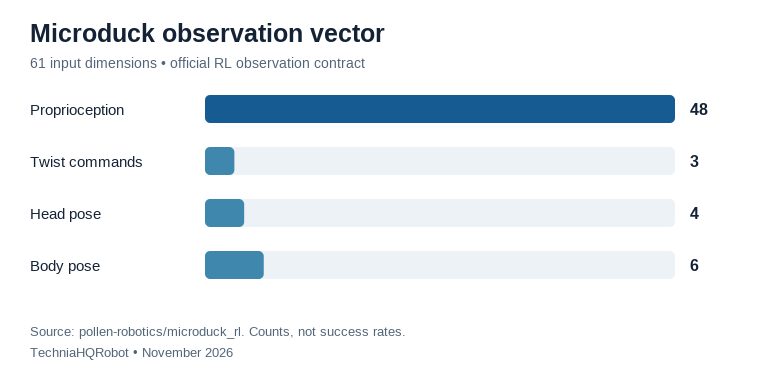
The RL repository documents a common 61-dimensional actor observation vector. It consists of 48 proprioceptive values plus 13 command values: three twist commands, four head-pose commands and six body-pose commands. Different policies keep this shared layout even when they do not use every command.
The project models XL330 actuator voltage response and friction, randomizes supply voltage and command delay, and includes optional backlash variants. A successful locomotion policy depends on these dynamics, not only on the shape of the CAD model. The 50 Hz control rate implies a 20 ms nominal tick.
Observation contract
| Input group | Dimensions |
|---|---|
| Proprioception | 48 |
| Twist commands | 3 |
| Head pose | 4 |
| Body pose | 6 |
| Total | 61 |
How to import Microduck into NVIDIA Isaac Sim and Isaac Lab
The official Microduck training stack uses MuJoCo. NVIDIA Isaac Sim supports importing MJCF into USD, so its importer offers a separate route to investigate Microduck in PhysX. We have not verified a manufacturer-supported Isaac Lab task or executed this conversion; it is a porting guide, not a claim of official compatibility.
Start with a robot MJCF such as robot_walk.xml in the official model directory. Keep the meshes. An imported asset is not a working locomotion policy: compare masses, centers of mass, inertias, drive limits, joint signs, contact geometry and friction. Recreate the sensors and observation vector before attempting policy inference.
- Install a supported Isaac Sim release and confirm the GPU and driver requirements using NVIDIA documentation.
- Open File > Import. If MJCF is missing, activate the MJCF importer extensions in Window > Extensions.
- Select the robot MJCF XML and configure the floating base, drives and import options. Convert the asset to USD and save it.
- Add a ground plane. Inspect articulation joints, collisions and mass properties. Confirm standing and joint direction in low-risk simulation tests.
- For Isaac Lab, construct an environment with matching command inputs, observation order, action scaling, timestep and actuator model. Compare traces against MuJoCo before using a trained policy.
- Train or evaluate in Isaac Lab only after the model and observations are validated.
MuJoCo vs Isaac Sim vs Isaac Lab
| Tool | Use for Microduck | Status |
|---|---|---|
| MuJoCo + mjlab | Official training and inference | Documented by manufacturer |
| Isaac Sim | MJCF import, USD, scene and sensor testing | General NVIDIA import route; Microduck port unverified |
| Isaac Lab | Custom RL task in Isaac ecosystem | Requires engineering and validation |
| ROS 2 / URDF | Visualization and integrations | Community conversion available; not manufacturer-validated |
How to make Microduck talk with an AI voice assistant
Microduck includes microphones and a speaker, but this does not establish arbitrary speech synthesis. GitHub issue #215 asks about two-way audio. Comments dated November 26 report an unmerged microphone branch and a fixed sound-bank API with no arbitrary audio buffer, file or stream playback method. The issue also requests a stable interface for microphone capture. These are community reports and remain subject to firmware changes.
A working prototype can use a computer microphone, speech-to-text, an LLM and computer speakers while sending approved gestures to the duck. This works around the missing robot-speaker path but does not make the robot itself speak. A later robot-native implementation would require a documented playback transport or a developer audio integration that respects audio-device ownership, mixing and system safety.
Choose a small set of allowed actions such as looking, nodding and a predefined sound. Reject requests that would move the robot outside a safe region. Keep the language model on a separate machine, because onboard memory is limited and balancing must not wait for a network response.
External microphone
Capture speech on a PC
Speech recognition
Convert speech to text
LLM + behavior rules
Generate response and select allowed gesture
TTS + speaker
Play speech on the PC today
Microduck runtime
Perform permitted gestures via documented API
Feedback loop
Camera frames can optionally inform dialogue through a separate vision client.
Safety supervision
Native two-way speech remains an unresolved integration. Require consent for recording and keep movement bounded.
python -m pip install pyttsx3
# Save as speak.py and run on your PC:
import pyttsx3
engine = pyttsx3.init()
engine.say('Hello, I am Microduck.')
engine.runAndWait()
How to connect ChatGPT, a local LLM or a vision-language model
Use a host application on a laptop or server. The application can process text or camera images, choose a bounded action from a fixed allowlist and send it through the documented Microduck client interface. No official plug-and-play ChatGPT integration was verified.
For a prototype, implement typed input first. Next add PC-side voice input and output, then a camera stream if the software version exposes it. A Reddit developer describes a similar split between onboard policies and a Wi-Fi-connected PC; that report is an experimental design, not a verified latency benchmark.
Never hand raw motor commands to generated text. Validate action names, duration, state and bounds. Stop movement on timeout, network loss or stale camera data.
ALLOWED = {'stand', 'look_left', 'look_right', 'stop'}
def validate_action(name):
    return name if name in ALLOWED else 'stop'
# Map validated actions to methods supported by your installed runtime.
print(validate_action('look_left'))
How to customize Microduck: colors, NFC, sounds, moves and personalities
The manufacturer offers four color options and optional accessories. NFC tags can be used in supported interactions, but the tag format and behavior mapping must match the installed software. For custom movements, build a task using the official RL repository rather than copying joint angles from a different biped.
A developer can design an emotion or head movement, map existing sounds to events and compose safe skills using documented interfaces. For a personality, keep preferences, dialogue and memory on a separate computer and use a small action vocabulary. Arbitrary speech output remains experimental as described above.
Avoid adding heavy shells, shifting the battery or modifying the legs without re-evaluating the center of mass and actuator load. The commercial product's full hardware CAD and electronics are not automatically open-source; DIY alternatives must be identified by their actual design and license.
Customization paths
| Customization | Recommended route | Difficulty |
|---|---|---|
| Color and stickers | Manufacturer shell options and lightweight decoration | Beginner |
| NFC interactions | Documented tag and behavior APIs | Intermediate |
| Sounds and emotion animations | Supported runtime sound bank and gestures | Intermediate |
| Walking or skating skill | MuJoCo RL training and ONNX export | Advanced |
| Voice personality | External assistant and bounded gesture commands | Advanced; native playback unresolved |
| DIY frame and motors | Separate documented project with its own BOM | Advanced; not an official kit |
How to load a custom policy and test safely
The policy manifest defines compatibility metadata for deployment. Use the publishing tool and the runtime policy loader from the matching repository revision. The documentation supports loading a policy into a slot using robotctl; check the current command help and preserve the original working policy before any replacement.
Before physical trials, verify observations, action dimensions, motor order, neutral positions and joint limits. Test the policy with realistic friction and latency. Run the real robot on the floor under supervision for short sessions, and stop if joints heat, commands saturate or the robot repeatedly falls.
Do not load a policy from an incompatible robot or unknown source. The example is not an instruction to override safety limits.
robotctl policy --help
# Example documented local walking-policy load:
sudo robotctl policy load walk /home/microduck/my_walking.onnx
Microduck troubleshooting: walking, Wi-Fi, camera, battery and policy errors
Diagnose by subsystem before changing firmware. Reproduce software issues in the runtime simulator, save logs and identify the exact version. For hardware symptoms, use the official owner instructions and contact support when the problem concerns wiring, charging or damaged parts.
Symptom and diagnostic checks
| Problem | Check first | Next action |
|---|---|---|
| Robot falls repeatedly | Floor, factory policy, battery and joint state | Stop tests; compare simulation and logs |
| One leg moves incorrectly | Joint mapping, zero offsets, actuator health | Do not force a joint; use official calibration/support |
| Policy will not load | ONNX compatibility and manifest | Use matching runtime and restore working policy |
| MuJoCo missing mesh | XML include paths and asset directory | Keep repository structure intact |
| Isaac Sim robot collapses | Floating base, inertias, drives and collisions | Recheck model import before adding policy |
| Camera unavailable | Network, permissions and mediad logs | Compare local and remote access; simulator cannot test ISP |
| No custom speech | Audio API version, fixed sound bank | Use PC audio until supported playback exists |
| Battery drains quickly | Duty cycle and battery condition | Measure runtime under a defined repeatable test |
Community questions from Reddit and GitHub: what is still unanswered?
We reviewed public discussions and issue #215 rather than inventing forum demand. The November 26 comments ask whether microphone streaming will become a stable interface and how arbitrary playback might work. Our answer is to develop the host-side assistant first and wait for a documented bidirectional transport before advertising native speech.
A Reddit thread describes a community MJCF-to-URDF/SRDF conversion for ROS 2 and Isaac Sim. It reports Blender inspection, not a validated physical control system. Use that conversion for investigation, but compare mass, inertia, joint limits and axes against the official files.
A separate Reddit discussion about training Microduck describes using mjlab and MuJoCo Warp and running a VLM on a PC. The unresolved question is physical Wi-Fi delay. A useful test is to log command-to-response time on real hardware and report median and worst-case latency under defined network conditions.
DIY builders also report issues with meshes, assembly and walking. Before buying parts, select an actual fork, verify its BOM, servo model and calibration instructions; the Pollen software repository alone is not an official printable kit. We have not tested community builds.
Questions observed and answer status
| Question | Evidence | Answer status |
|---|---|---|
| Can it speak arbitrary sentences? | GitHub #215 | Open integration; PC-side prototype possible |
| Can I use ROS 2 or Isaac Sim? | Reddit URDF conversion | Community asset; validation required |
| Can I run a VLM on the robot? | Reddit training discussion | PC-hosted architecture proposed; no measured latency |
| Can I print and assemble one? | Reddit DIY discussion; store terms | Separate DIY design required |
What to test and measure before publishing a Microduck benchmark
Do not claim a success rate without a trial count and conditions. Measure walking distance, fall count, recovery success, command tracking, run time and latency. Report the surface, accessory configuration, software version, policy version and battery state.
For example, define a straight walking route and repeat it under the same conditions. For fall recovery, report successes divided by attempts separately for each starting orientation. For conversational experiments, distinguish audio generated by a PC from audio actually played by the robot. The chart above describes documented observation dimensions; it does not imply measured reliability.
Frequently asked questions
How much does Microduck cost?
The advertised preorder price is $399 before tax and shipping. The European store displayed €340 on November 27, 2026.
Where can I buy Microduck?
Use the official Pollen Robotics store linked in the sources. Check your destination, final price and estimated delivery at checkout.
When will Microduck ship?
The October 29 shipping policy targets initial deliveries before Christmas 2026. Individual dates are not guaranteed.
Is Microduck fully open-source?
The runtime, simulation and RL training software are Apache-2.0. Full mechanical and electronic production designs are not generally licensed as open-source hardware.
Can I use Microduck without buying it?
Yes. The official browser simulator and local MuJoCo tools provide a virtual workflow.
Can Microduck work with Isaac Sim?
NVIDIA supports importing MJCF models into USD. A Microduck import requires validation; we have not verified an official Isaac Lab environment.
Can Microduck talk like Reachy Mini?
It has audio hardware and predefined sounds. Arbitrary native speech playback is not verified; GitHub issue #215 documents unresolved integration.
Can I connect ChatGPT to Microduck?
A custom PC-side assistant can select allowed behaviors through documented interfaces. There is no verified plug-and-play integration in this guide.
What programming language does Microduck use?
Its core runtime uses Rust. The training stack and many development scripts use Python.
How long does the battery last?
The manufacturer estimates about one hour for the removable NP-F550 battery; actual runtime depends on use.
Can I train a new gait?
Yes, the official microduck_rl repository provides PPO training, simulation and ONNX export.
Is Microduck the same as XGO-Duck or Open Duck Mini?
No. These are distinct robot projects and may use different boards, motors and mechanical designs.
Can I use it with ROS 2?
A community URDF and SRDF conversion has been posted. This is not verified official ROS 2 support.
Is Microduck a children's toy?
The manufacturer's terms describe it as an experimental platform recommended for ages 16 and above, not a children's product.
Sources and methodology
Technical research checked November 27, 2026 against manufacturer product/store documentation, primary repositories, NVIDIA documentation and explicitly identified community discussions. Code examples are documented or marked illustrative. No physical Microduck or Isaac Sim import was tested for this article.